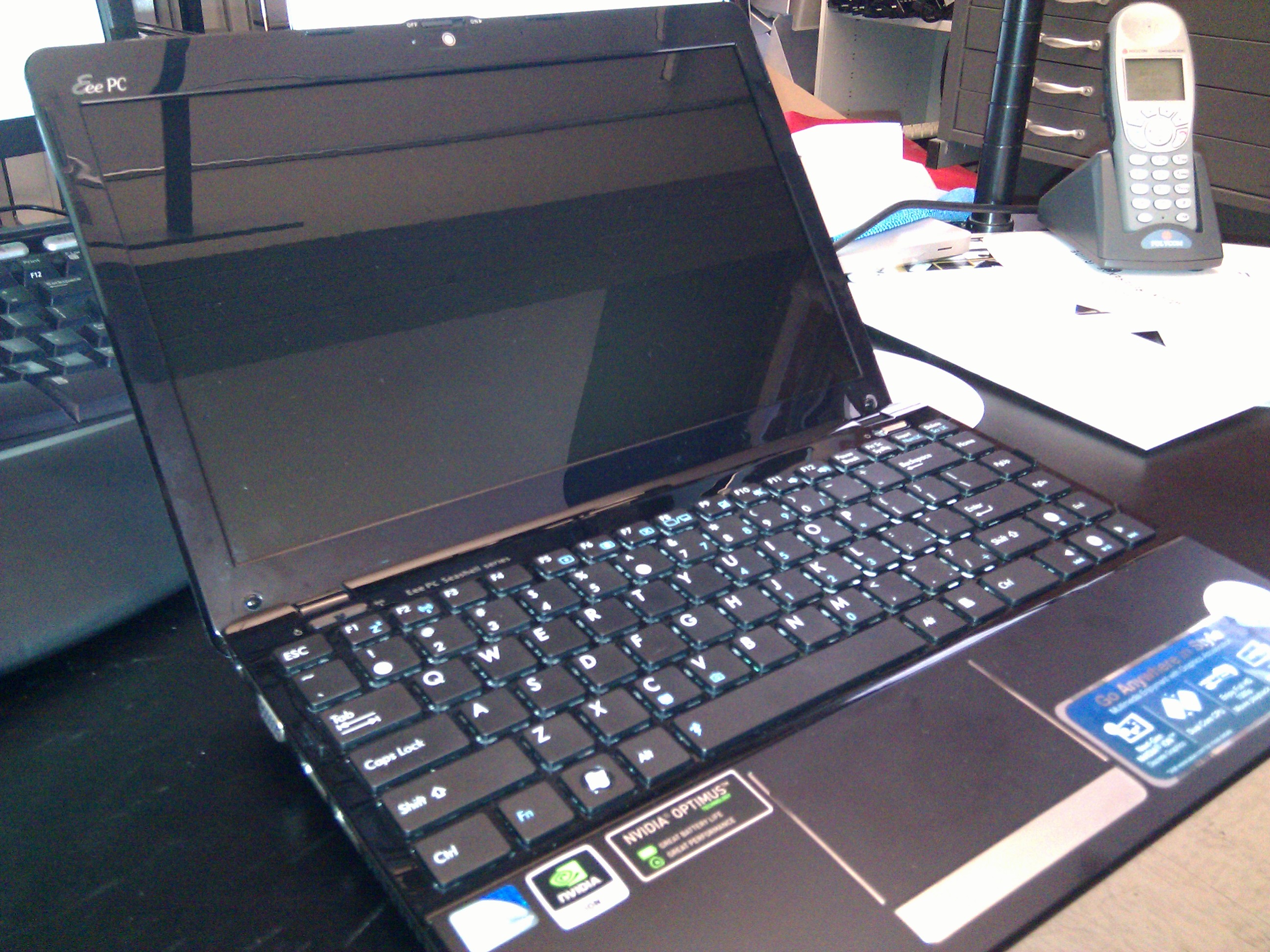
I’ve gotten my hands on a new netbook, this time is the
Asus Eee PC 1215N. It comes with an Intel Atom 1.8 GHz (dual core), 2 GB of RAM, a 320 GB HD and an Nvidia Ion graphics chip. All of this is wrapped up into a nice little 12″ package. It won’t be setting any speed records with its Intel Atom processor, but having a dual core 1.8 GHz is quite the upgrade from the standard single core 1.6 GHz. It certainly makes life on the go quite nice. Plus I’ve added Ubuntu Netbook Remix 10.10 to the mix.
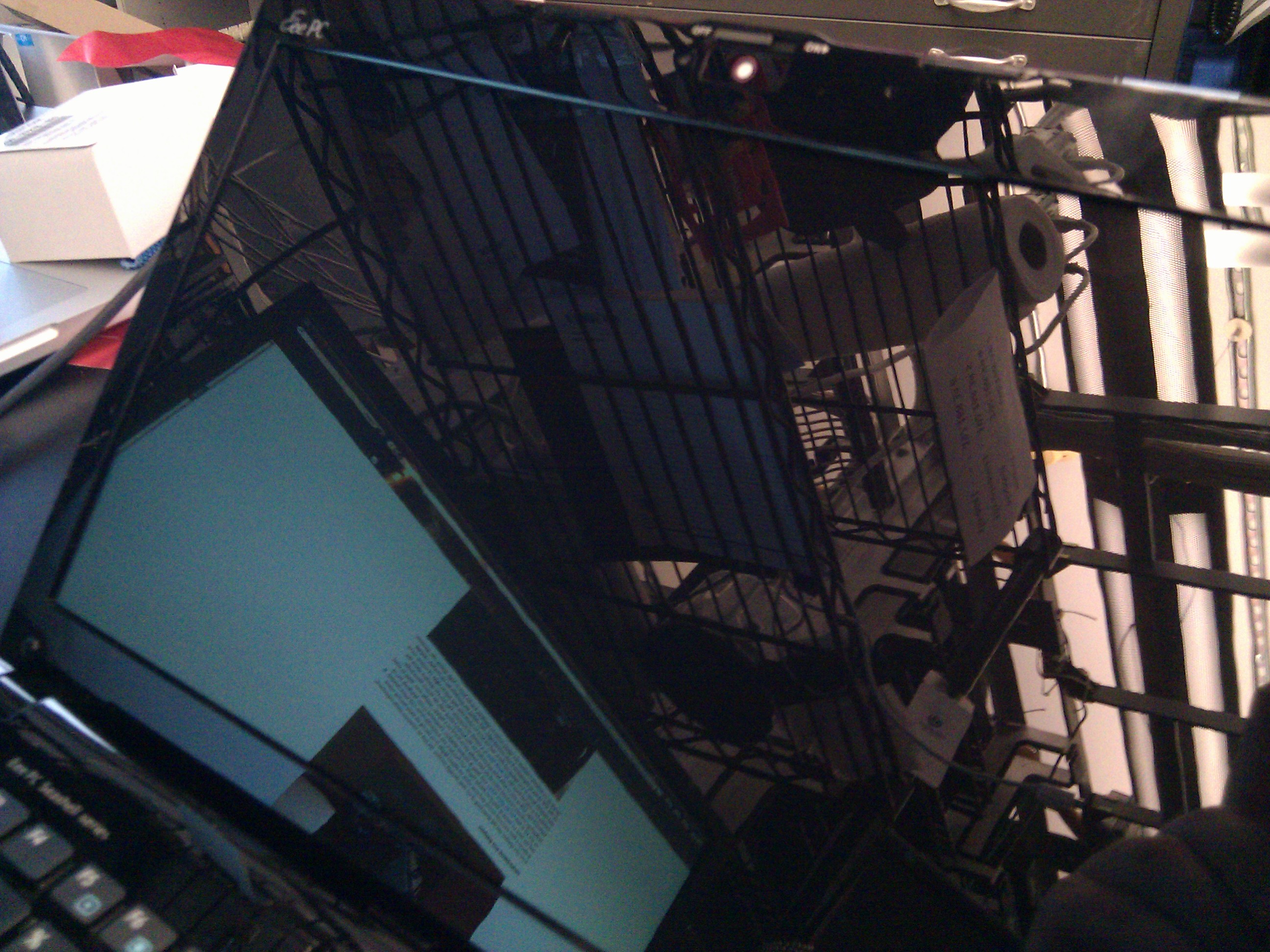
Screen — Since the screen is the most noticeable part of the machine, I thought I’d start there. The screen is 12.1″, which is exactly what you’d expect from a 12″ netbook. What I wasn’t expecting was the fact that it is in 16:9 format (Movie/TV format) at 1366×768 native. Most laptop screens these days are 16:10. It isn’t necessarily a bad thing, just surprising. It is quite nice when watching TV shows though, as you can full screen and not have a single pixel of black bar.
One of the bits that I’m not to sure about is the glossy screen; it’s very glossy. If the screen is off, the machine can practically double as a mirror. It looks “nice”, but personally I don’t like my screens so glossy (plus I just came from the Dell XT2, which is about as matte as it gets).
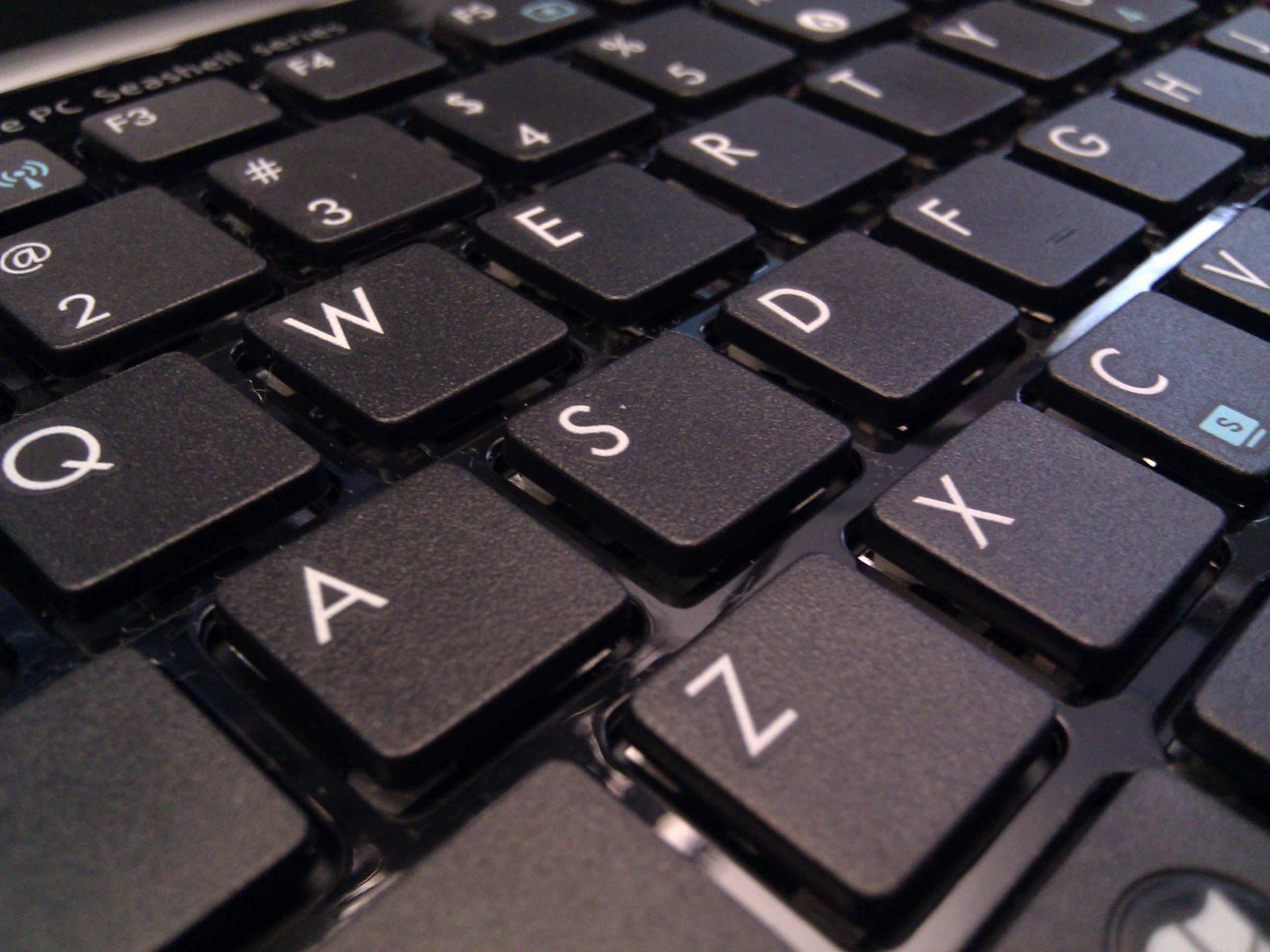
Keyboard/Mouse — The keyboard is a fullsize chiclet keyboard. Having a fullsize keyboard is great because I can type on the machine after just a day or two with nearly no mistakes on the keyboard. I switch keyboards a lot, so I adapt quickly, but I remember the 10″ Eee I had took me weeks of “adjusting”. To be completely honest, if I had my druthers, I wouldn’t have a chiclet keyboard, but I take what I can get. It does work well and is responsive; I can’t really fault it for anything other than the keys not having as much travel as I’d like. The touchpad is a standard touchpad, nothing fancy about it, though it is made of the same material as the rest of the wrist rest. The mouse button is a single physical button in the same style as Macs. Again, personally I’d prefer two (or three) buttons, but I can adapt.
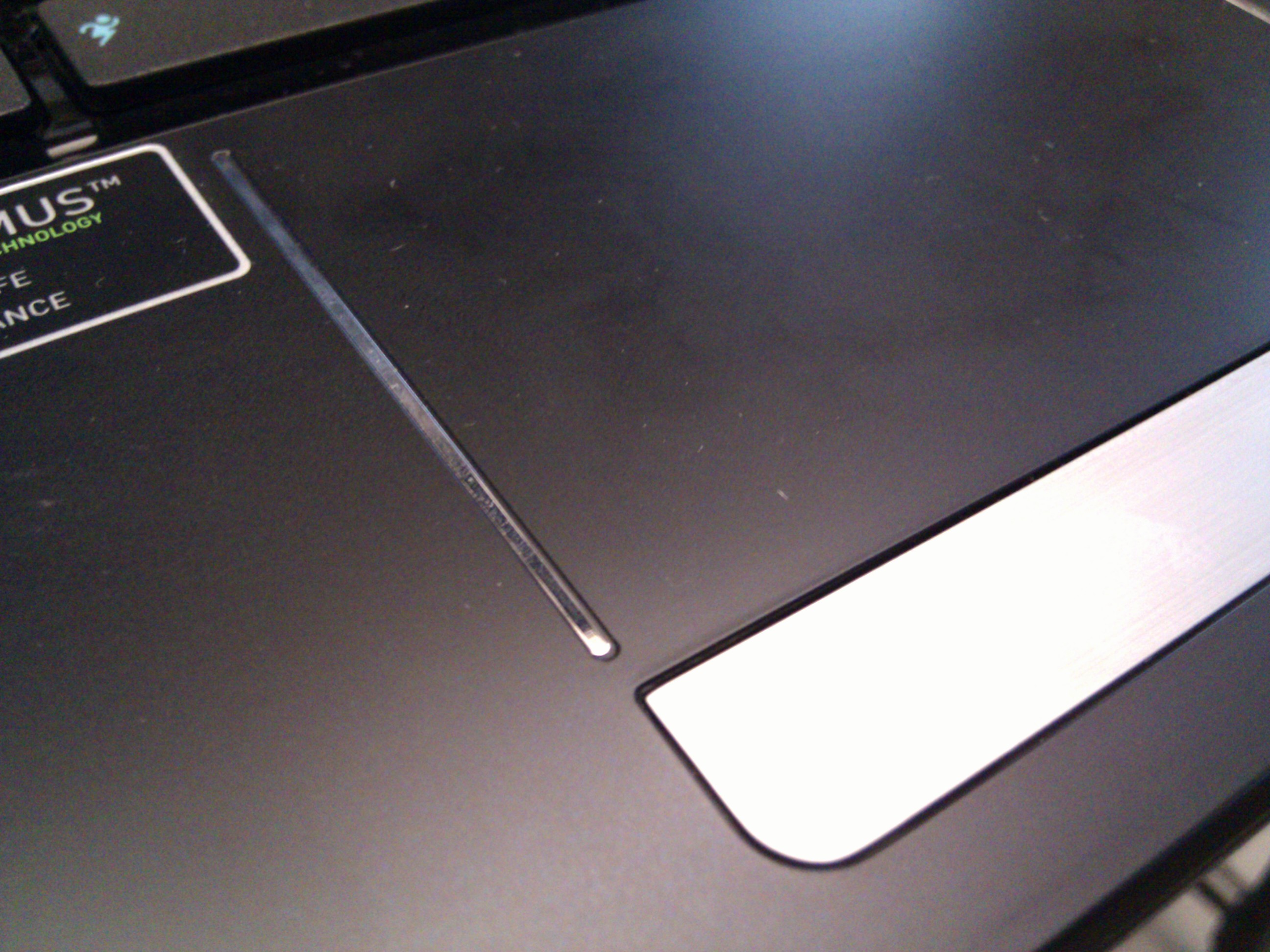
Case Overall — The entire machine is black (though they sell a silver and red version too), but Asus decided to go with a matte finish for most parts. This makes sense and looks fairly nice on the top of the lid. The matte finish means it doesn’t pick up fingerprints at all. Though the keyboard area and the screen frame are both glossy, they are the only pieces on the machine that are. To me, this really doesn’t make any sense, but it might make the keyboard easier to clean.
Weight/Portability — Since the Eee PC 1215N is a 12″ machine, it doesn’t come across as a netbook (at first) though it does retain a netbook’s weight and portability. It weighs in at about 3.2 pounds (according to the specs), combine that with the tiny power brick, and you have a machine so light that I actually cannot tell if it is in my backpack. Some would argue that a 12″ machine isn’t nearly as “portable” as a 10″, but I’ll be honest, I can’t find a time a 10″ would be superior. When I want to use the computer, I want to be able to type with easy and actually read the screen. The smaller the machine, the harder both of those get. Though now that I think about it, if I was in a tiny airplane seat with someone jamming their seat back as far as it goes, a 10″ might be useful. Even still, I’ll stick with the 12″, thank you very much.
The battery is also quite good. I haven’t had a chance to run it down, but Windows reported 5-6 hours (Ubuntu reports 4-5 hours). Regardless of the exact details (which vary based on your personal usage style), it’ll keep you away from a wall for quite a long time. It’s also detachable (like any real machine) so you could bring a backup or a larger battery (if you don’t mind carrying some extra weight).
Overall — Asus’ website state that the 1215N might come with bluetooth and USB 3.0, neither of which my machine did. I almost never use Bluetooth so that’s no loss, but USB3 would have been nice (but not necessary). All in all, for such a small machine, it has a lot of little bells and whistles. Also, quite favorably in my book is the price point, at just $484 (on Amazon, at time of posting), it is just as good as some of the $2000 “ultra portable laptops”. As I have done in the past, I typed up this post on the hardware in question. It was a pleasant experience, just like most everything else about this, especially since I can watch TV in full screen sans black bars. Using this machine on the go (read: while not plugged into a wall) has been very enjoyable, even more so with its light weight.